




TL;DR Summary: MongoDB Shell (mongosh) is an interactive command line interface for managing MongoDB databases, enabling data manipulation and administrative tasks. Key features include syntax highlighting, intelligent autocomplete, and contextual help. The shell is installed with MongoDB server setup and works on Windows, Linux, and Mac OS.
- Run all MongoDB queries from the Mongo shell.
- Alternatives include MongoDB Compass and NoSQLBooster.
This article is about the default client for MongoDB—the MongoDB Shell, or mongosh. In this article, we’ll discuss:
About MongoDB Shell environment
What is the MongoDB Shell?
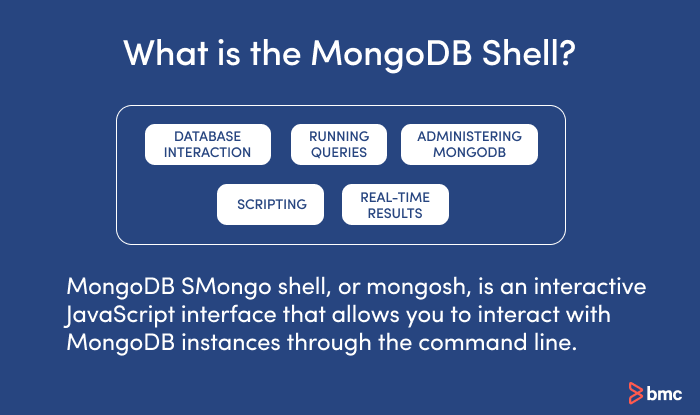
MongoDB Shell, or mongosh, is an interactive JavaScript interface that allows you to interact with MongoDB instances through the command line. The shell can be used for data manipulation, testing queries, and administrative operations, such as maintenance of MongoDB database instances either locally or on a remote host.
MongoDB Shell is the default client for the MongoDB database server. It’s a command line interface (CLI), where the input and output are all console based. Mongosh is a good tool to manipulate small sets of data.
What are the features of MongoDB Shell?
MongoDB Shell features are always evolving. Key functionality now includes:
- Run all MongoDB queries from the Mongo shell.
- Manipulate data and perform administration operations.
- Issue commands using JavaScript and a related API.
- See previous commands in the Mongo shell with up and down arrow keys.
- Syntax that color codes inputs and outputs for easier reading.
- Intelligent autocomplete that helps if you can’t remember a command or operator.
- Clear error messages to help you know what is wrong and where in the code problems exist.
- Contextual help, linking your direction to documentation.
- A powerful scripting environment.
- The ability to save frequently used scripts as snippets that you can reuse later.
Installing the MongoDB Shell
The MongoDB Shell gets installed when you install the MongoDB server. It is installed in the same location as the MongoDB server binary.
If you want to install it separately, you can visit the MongoDB download center, from there select the version and package you need, download the archive, and copy it to a location in your file system.
Mongo shell is available for all main operating systems, including:
- Windows
- Linux
- Mac OS
How to connect to a database from the MongoDB Shell
Once you’ve downloaded and installed MongoDB, you can use the mongo shell to connect with a MongoDB server that is up and running.
Note: It is required that your server is already running before you connect with it through the shell. You can start the server in CMD using the following command.
net start MongoDB

Then type mongo command to run the shell.
Mongo
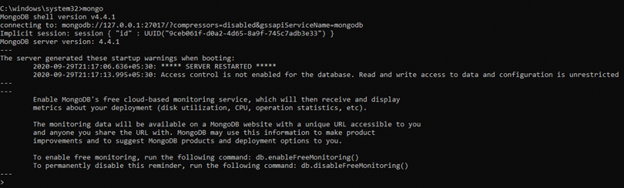
Now you are in the Mongo shell.
If you want, you can run the mongo and mongod without the command prompt. To do this, go to the installation location and double click on the mongod and mongo applications. You will get the same result as the above.
Using different port with MongoDB Shell
The above mongo command only works if your MongoDB server runs on the default port, which is 27017. If your MongoDB server runs on a different port, you have to explicitly specify it in the command, as shown below:
mongo --port 28010
Connecting to a remote MongoDB server
Both of the above commands only work if your MongoDB server is running on the localhost. If you want to connect to a remote server, use the `–host` option with the mongo command, as shown below.
mongo --host mongodb0.example.com --port 28010
Basic MongoDB Shell commands
Now it’s time to work with the Mongo shell. First, we will learn some basic mongosh commands that will help you to get started.
See current selected database - db command
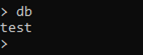
Run the db command to see the database you are currently working with
db
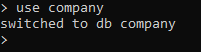
Switch to a different database - use command
Run the use command to switch to a different database. If you don’t have a database, learn how to create a new database.
use company
Create collections and insert data in MongoDB
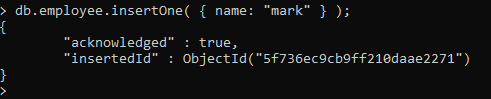
You can create collections and insert data with the following MongoDB Shell command:
- db refers to the current database in use.
- employee is the collection name.
- insertOne is the method to insert a document to the collection.
db.employee.insertOne( { name: "mark" } );
Fetch data in a collection - find method
Use the find method to fetch data in a collection. The forEach(printjson) method will print them with JSON formatting
db.employee.find().forEach(printjson)

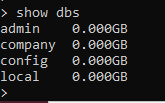
Show all databases - show dbs command
Use the show dbs command to Show all databases
show dbs
Get a list of help options - MongoDB help commands
One important basics MongoDB command will help you work with the Mongo shell easily: the help command. Run the help command to get a list of help options available in the mongo shell.
Help
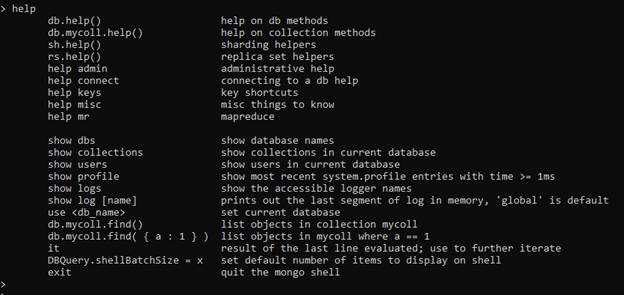
To get a full list of MongoDB Shell commands that you can execute on the current database, type db.help()
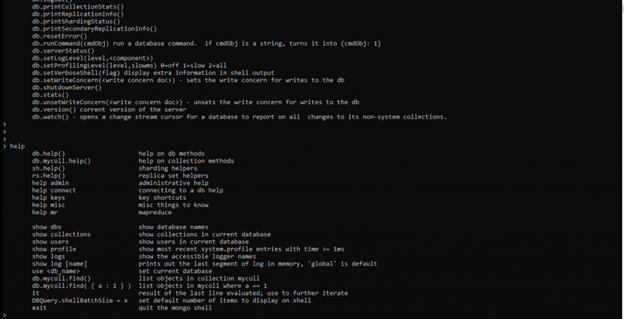
We will discuss more data manipulation commands in coming tutorials. For a full list of commands, check out the official Mongo shell page.
MongoDB Shell keyboard shortcuts
There are two important MongoDB Shell keyboard shortcuts that you should know:
- Use up and down arrows to go back and forth in the commands history.
- Press the tab key to get a full list of possible commands. For example, type d and press tab twice. You will get the following output.

Disadvantages of the MongoDB Shell
Although the Mongo shell is an excellent tool for learning and testing the MongoDB server, it is difficult to be used in a production environment. Being a shell inherently carries certain disadvantages. Let’s see what they are:
- The Mongo shell is strictly a console centric method of data manipulation. While some find it easy and quick, others might not find those characteristics appealing.
- If you are working on multiple sessions, you need multiple terminals.
- If the results are too long, they scroll away.
- Repetitive commands or debugging a function need the programmer to traverse the long command line history manually.
Alternatives to MongoDB Shell
So now you know the MongoDB shell has some disadvantages. At this point, you may want to know what other options are available. MongoDB developers have introduced drivers specific to each programming language to connect with the MongoDB databases when using MongoDB in your applications. You can find them here.
Additionally, many people prefer to use GUIs to work with databases nowadays. One of the best GUI tools for MongoDB is the MongoDB Compass. Some other useful GUI tools are:
Remember that the best MongoDB GUI depends on the task that needs to be accomplished. MongoDB Compass is the go-to option if you need to avoid the command line completely. Robo 3T is simple and well supported by the community, while NoSQLBooster is shell centric smart GUI tool.
With that, we’ve reached the end of this tutorial. Now, play with the shell and get practice.
Additional resources
For more tutorials like this, explore these resources:
MongoDB Guide
- MongoDB Overview: Getting Started with MongoDB
- How to Install MongoDB on Ubuntu and Mac
- Creating a Database in MongoDB
- MongoDB Shell Basic Commands
- MongoDB Compass: Using the Mongo GUI
- MongoDB Role-Based Access Control (RBAC) Explained
- MongoDB Projection & Projection Operators Explained
- MongoDB Aggregate Functions Explained
- MongoDB Sorting: sort() Method & Examples
- Using Push & Pull Operators in MongoDB
- How To Use MongoDB $unwind
- 23 Common MongoDB Query Operators & How to Use Them
- MongoDB GeoLocation Query Examples
- Introduction to MongoDB Transactions
- MongoDB Indexes: Top Index Types & How to Manage Them
- Top MongoDB Commands You Need to Know
- MongoDB Replication: A Complete Introduction
- How to Setup a MongoDB Cluster
- MongoDB Sharding: Concepts, Examples & Tutorials
- MongoDB Atlas: Setting Up & Using Managed MongoDB
- How To Run MongoDB as a Docker Container
- MongoDB Memory Usage, Management, & Requirements
- How To Use mongodump for MongoDB Backups
- Mongorestore Examples for Restoring MongoDB Backups
- How To Use PyMongo
- How to Use Mongoose for MongoDB & NodeJS
- MongoDB Cheat Sheet
- MongoDB vs Cassandra: NoSQL Databases Compared
- PostgreSQL vs MongoDB: Comparing Databases
- MySQL vs MongoDB: Comparing Databases
- MongoDB Certifications: An Introduction
These postings are my own and do not necessarily represent BMC's position, strategies, or opinion.